

ChatGPT
ChatGPT connects to seventhings as a remote MCP server. Before you begin, copy your MCP server URL from Integrations → MCP in your seventhings instance. See the MCP overview for the URL format and general security guidance.
Enable developer mode
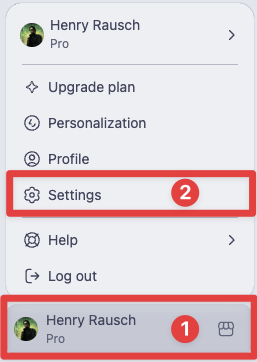
Section titled “Enable developer mode”- Select your profile in the bottom-left corner.
- Select Settings.
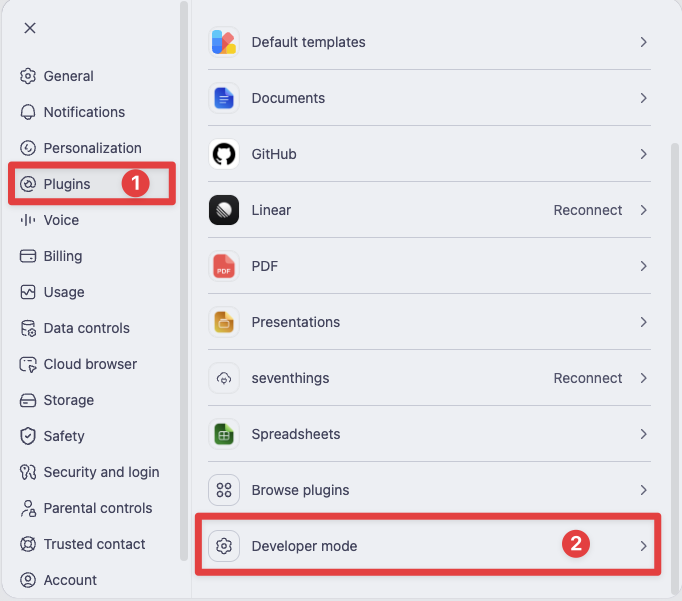
- Select Plugins.
- Select Developer mode.
- Enable Developer mode.
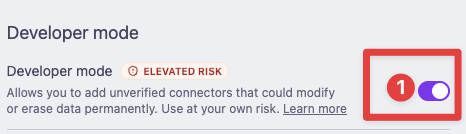
Developer mode availability can depend on your account and workspace policy.
Add seventhings
Section titled “Add seventhings”- Select Plugins in the sidebar.
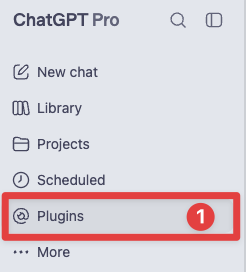
- Select the plus button.

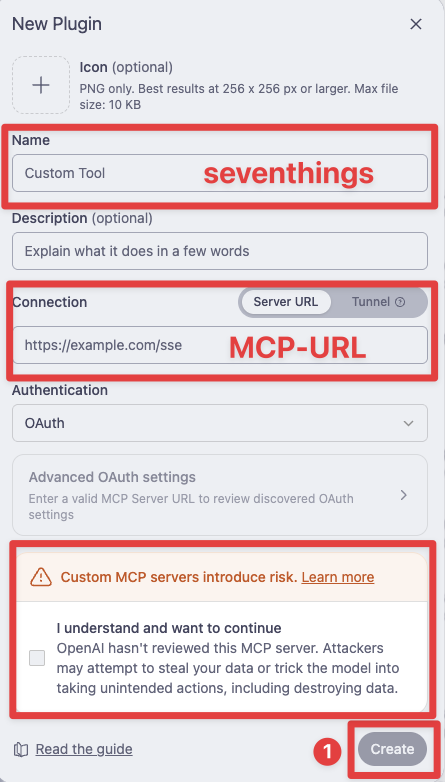
- Enter a user-facing name and, optionally, a description for the connection.
- Paste your seventhings MCP server URL.
- Keep Authentication set to OAuth.
- Review and accept the custom MCP server warning.
- Select Create and complete the seventhings OAuth flow.
- Review the tools and metadata discovered from the server.
Enable seventhings in a conversation
Section titled “Enable seventhings in a conversation”- Start a new conversation in ChatGPT.
- Add the seventhings connection from the tools menu.
- Review tool approval requests before allowing ChatGPT to access data or make changes.
See OpenAI’s MCP connection documentation for the latest ChatGPT setup steps.