

Claude
Claude connects to seventhings as a custom remote MCP connector. Before you begin, copy your MCP server URL from Integrations → MCP in your seventhings instance. See the MCP overview for the URL format and general security guidance.
Individual plans
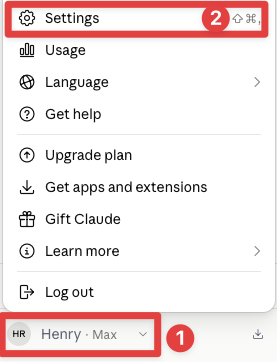
Section titled “Individual plans”- Select your profile in the bottom-left corner.
- Select Settings.
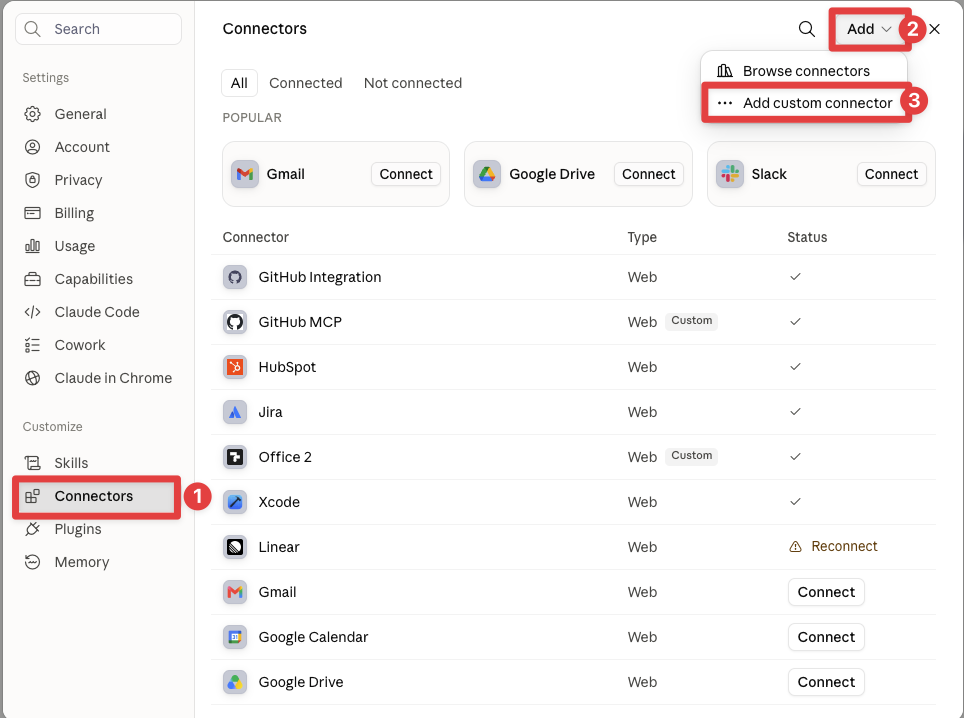
- Select Connectors.
- Select Add in the top-right corner.
- Select Add customized connector.
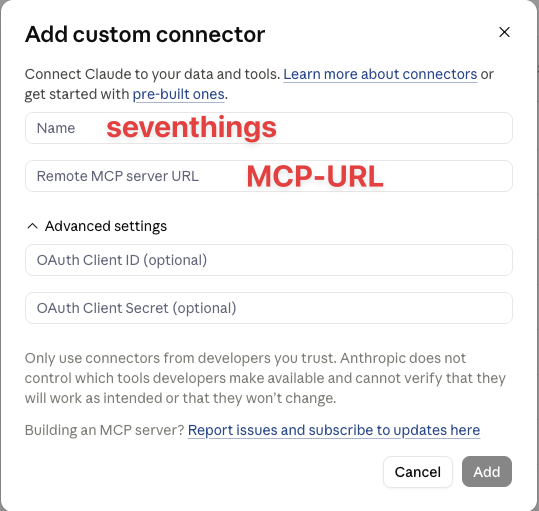
- Enter a name such as
seventhingsand paste your MCP server URL. - Select Add.
Team and Enterprise plans
Section titled “Team and Enterprise plans”Setup and availability depend on your organization’s configuration. Follow Claude’s Team and Enterprise connector documentation for current instructions.
Enable seventhings in a conversation
Section titled “Enable seventhings in a conversation”- Start or open a conversation in Claude.
- Select the + button, then Connectors.
- Enable seventhings for the conversation.
- Review tool approval requests before allowing Claude to access data or make changes.
See Claude’s custom connector documentation for current plan availability and account-specific controls.